How to screenshot a Google Sheet
By Celtrim · Updated
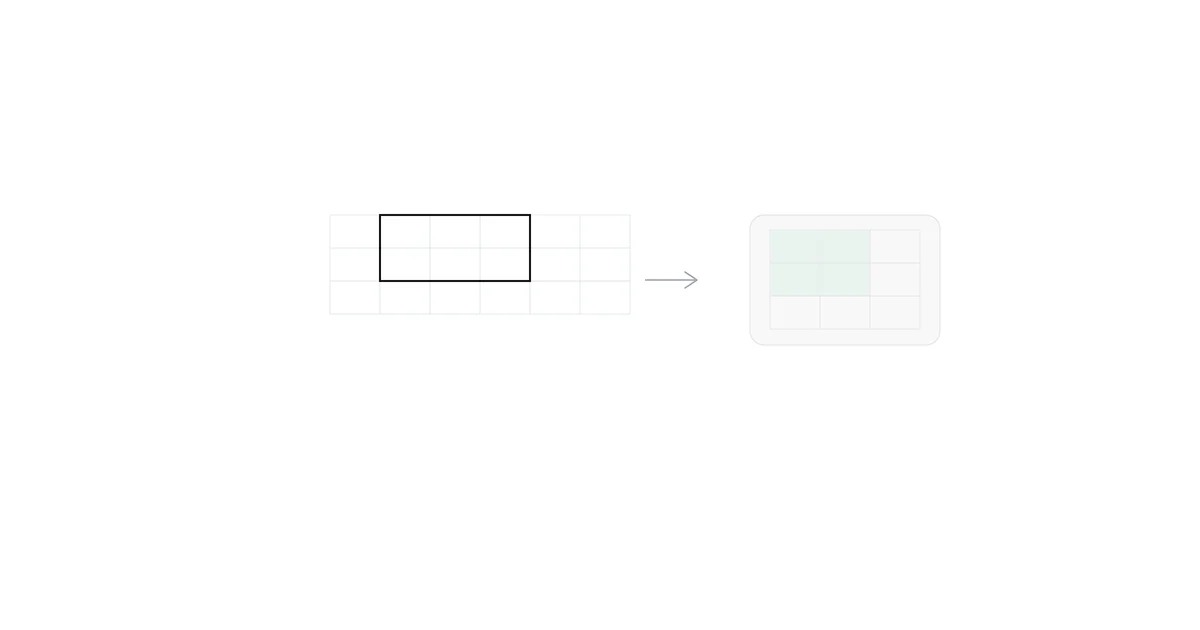
Google Sheets doesn't have a built-in "export as image" command, so screenshotting a sheet means either an OS-level screenshot or exporting the file first and using a tool built for spreadsheet data. Which one makes sense depends on whether you want the whole visible sheet or a clean, cropped range.
The OS screenshot tool
The same options as any other browser tab: Cmd+Shift+4 on Mac, Win+Shift+S on Windows. This captures exactly what's rendered on screen at your current zoom and scroll position — which means it includes Google's toolbar and row/column headers unless you crop them out, and it's limited to whatever fits in the viewport. A wide sheet with many columns, or a sheet zoomed out to fit more rows, ends up with either tiny illegible text or a screenshot that's simply cut off at the edge of the window.
Selected cells specifically
If you only want a range — a few rows, one table, a single column of totals — the OS screenshot tool still works, but you're manually drawing a rectangle over the right pixels rather than selecting the actual cells. Any header text taller or shorter than a row throws off your crop, and there's no way to include the exact cell boundaries without eyeballing it.
Long sheets: the scrolling problem
A sheet taller than one screen can't be captured in a single OS screenshot without scrolling and stitching multiple shots together — browser "capture full page" extensions handle this for a normal webpage, but Sheets renders as a virtualized grid, so some extensions capture a mostly-blank scroll area instead of the actual rows, since off-screen cells aren't in the page's DOM until you scroll to them. The more reliable fix for a genuinely long range is to reduce what you're capturing to the specific rows that matter rather than the whole sheet — see below.
Copying the cells into an image tool
For a normal table, select the range in Google Sheets, copy it, and paste it into a tool that understands tabular clipboard data. This works from the actual rows and columns rather than whatever pixels happen to fit in the browser viewport.
That's the quickest Google-Sheets-to-image workflow in Celtrim: copy the cells, choose Paste cells, select exactly the range you want, and export a clean PNG. Because the selection isn't tied to the browser viewport, there's no scrolling or stitching involved.
Downloading the file when formatting matters
Google Sheets can also export the spreadsheet through File → Download → Microsoft Excel (.xlsx) or Comma Separated Values (.csv). Opening the .xlsx file is preferable when fills, borders, and font emphasis matter. CSV carries the values but does not contain visual formatting.