How to make a spreadsheet screenshot fit an email
By Celtrim · Updated
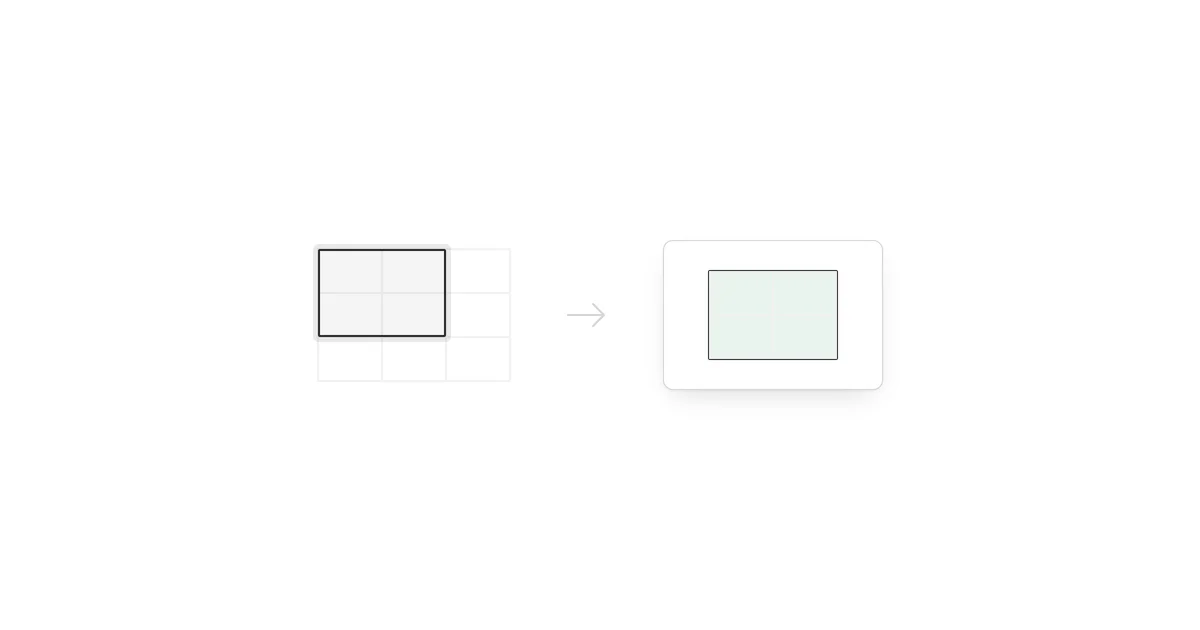
A spreadsheet screenshot fits an email when it is narrow enough to read in the message body, includes only the necessary columns, and uses text large enough for a laptop or phone. Exporting a selected range is more reliable than shrinking a screenshot of the entire worksheet.
Start with the reader's question
Before creating the image, identify the rows and columns that answer the email's question. Include the header row and any total needed for context. Remove empty columns, helper formulas, and unrelated identifiers.
A compact six-column result is usually more useful than a twelve-column workbook view scaled to half its size.
Export the selected range
- Copy the cells from Excel or Google Sheets.
- Open Celtrim and choose Paste cells.
- Select the final range.
- Add a small amount of padding and use a plain background.
- Export the PNG at 2× scale.
- Insert the image inline in the email rather than leaving it only as an attachment.
For supported workbook formatting, upload the .xlsx file instead of pasting. The editor can then carry supported fills, borders, bold text, and calculated values into the export.
Design for a narrow reading area
Email columns are narrower than spreadsheet windows. Shorten verbose headers where the meaning remains clear, place units in the header, and round numbers to the precision the recipient needs. If the table is still too wide, split it into two logical images.
Do not solve width by shrinking the entire image. Small text becomes especially difficult on mobile and can be blurred further by the mail client.
Add text outside the image
Write the conclusion in the email body: what the table shows, the relevant period, and the requested action. This provides accessible context, makes the message searchable, and helps readers who have images disabled.
Attach the spreadsheet or link to the live source when recipients need to filter or inspect formulas. The image should communicate the snapshot; it should not pretend to replace the underlying data.
For a chat-sized version of the same workflow, read how to share an Excel table in Slack or Teams. For presentation use, follow the sharper PowerPoint export settings.