How to share an Excel table in Slack or Teams
By Celtrim · Updated
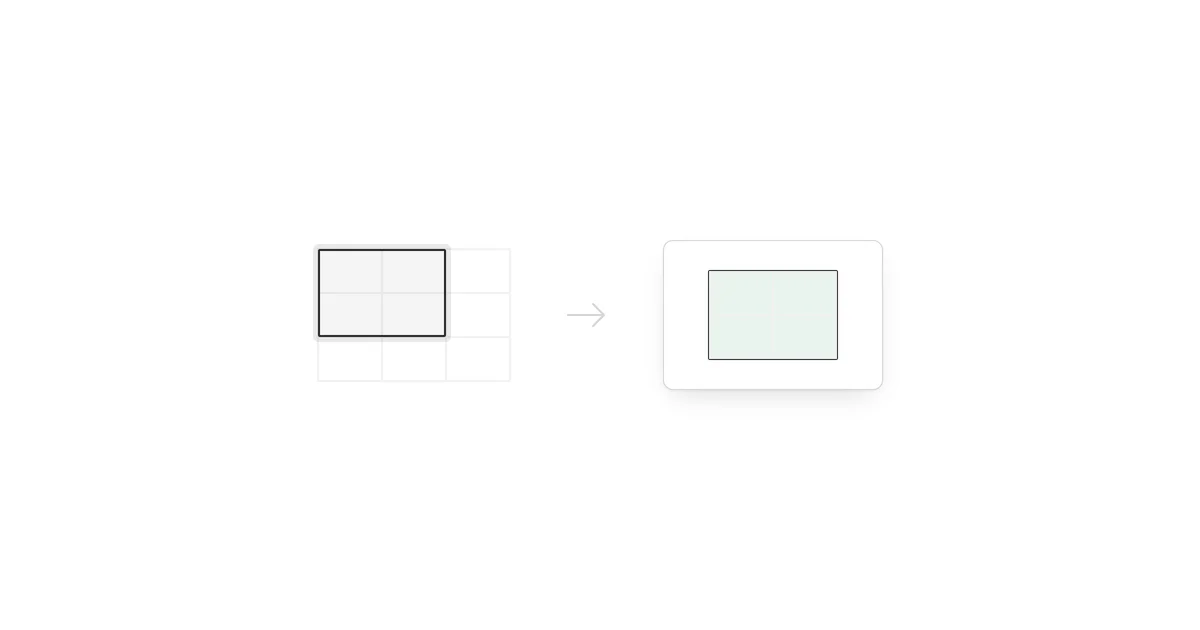
The cleanest way to share an Excel table in Slack or Microsoft Teams is to send a focused image of the relevant cells and keep the workbook link or file separate for people who need the underlying data. An image preserves alignment and can be read inside the conversation.
Create the table image
- Select and copy the useful cells in Excel.
- Open Celtrim and choose Paste cells.
- Select the final range, including the headers.
- Use modest padding and a background that works in light and dark chat themes.
- Download the PNG and attach it to the message.
Upload the .xlsx file instead of pasting when workbook formatting—such as fills, borders, bold totals, or conditional formatting—is essential to the explanation.
Write the message around the table
The image should support a clear sentence, not replace one. State what changed, the time period, and the decision or question. For example: “June support volume rose in Enterprise; the highlighted rows show the three affected accounts.”
This context also makes the snapshot searchable in the conversation later, since text inside an image is less dependable as a search target.
Keep confidential data out
Select only the columns needed for the discussion. Remove customer identifiers, personal information, hidden notes, and helper calculations before exporting. Sharing a narrow range is safer and easier to read than attaching a workbook with unrelated sheets.
For a sensitive table, inspect every visible cell in the final preview. A screenshot is fixed, so deleting the source message later does not revoke copies that colleagues may already have downloaded.
When to attach the workbook too
Add the workbook or a shared link when recipients need formulas, filters, audit details, or live updates. The PNG is the summary; the spreadsheet remains the working source.
If the same table is going into a deck, use a higher-resolution export and follow the PowerPoint image guidance. For a smaller communication surface, see how to make a spreadsheet screenshot fit an email.